- 1. Take a clear photo of yourself sitting.
- 2. Upload to Google Gemini, Kapwing, or a TikTok puppy AI generator.
- 3. Prompt: "Add [number] realistic [breed] puppies surrounding me and on my lap. Keep original lighting."
- 4. Download the result and optionally animate using Luma or Runway for the "cuddle" effect.
What is the AI Puppy Photo Trend?
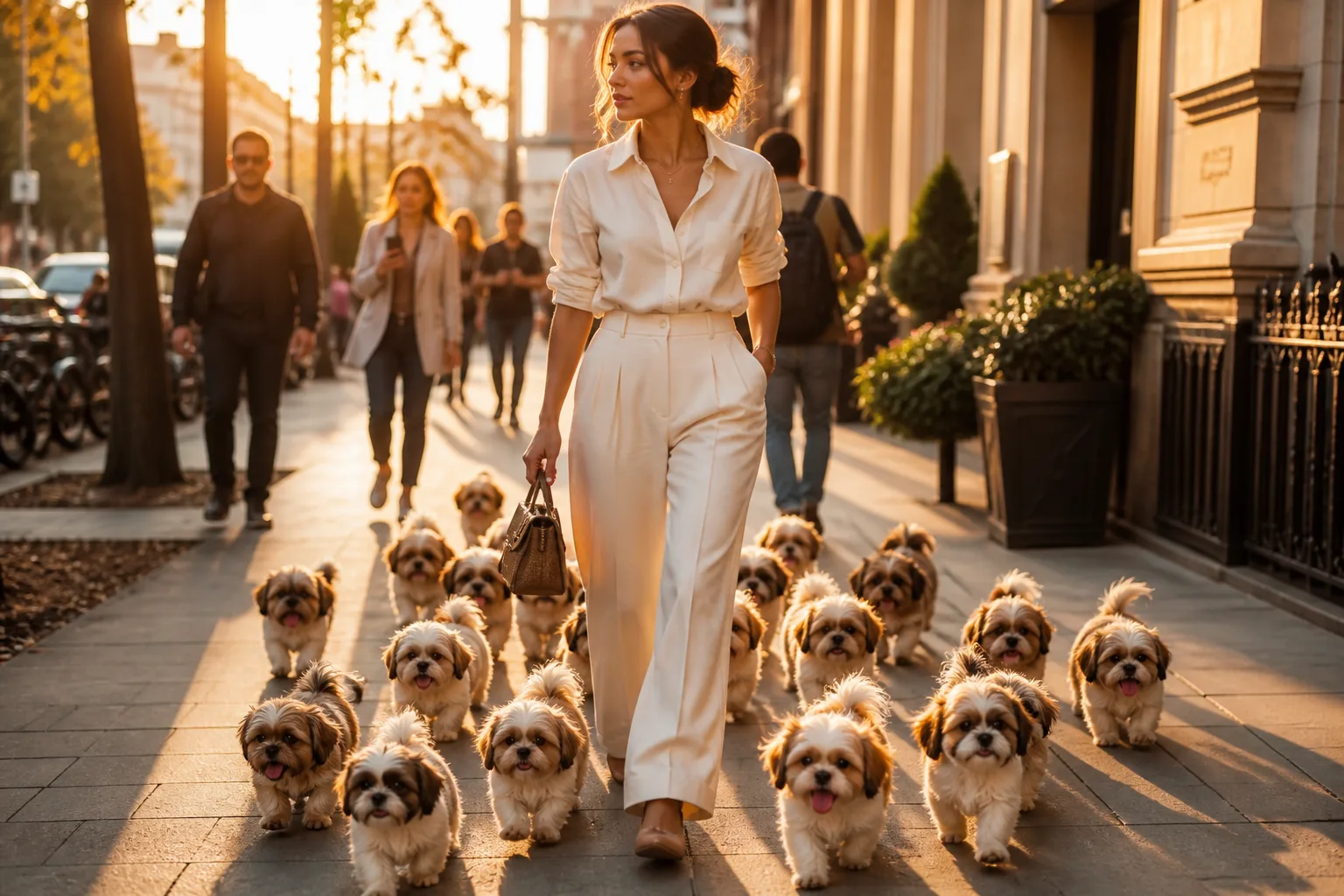
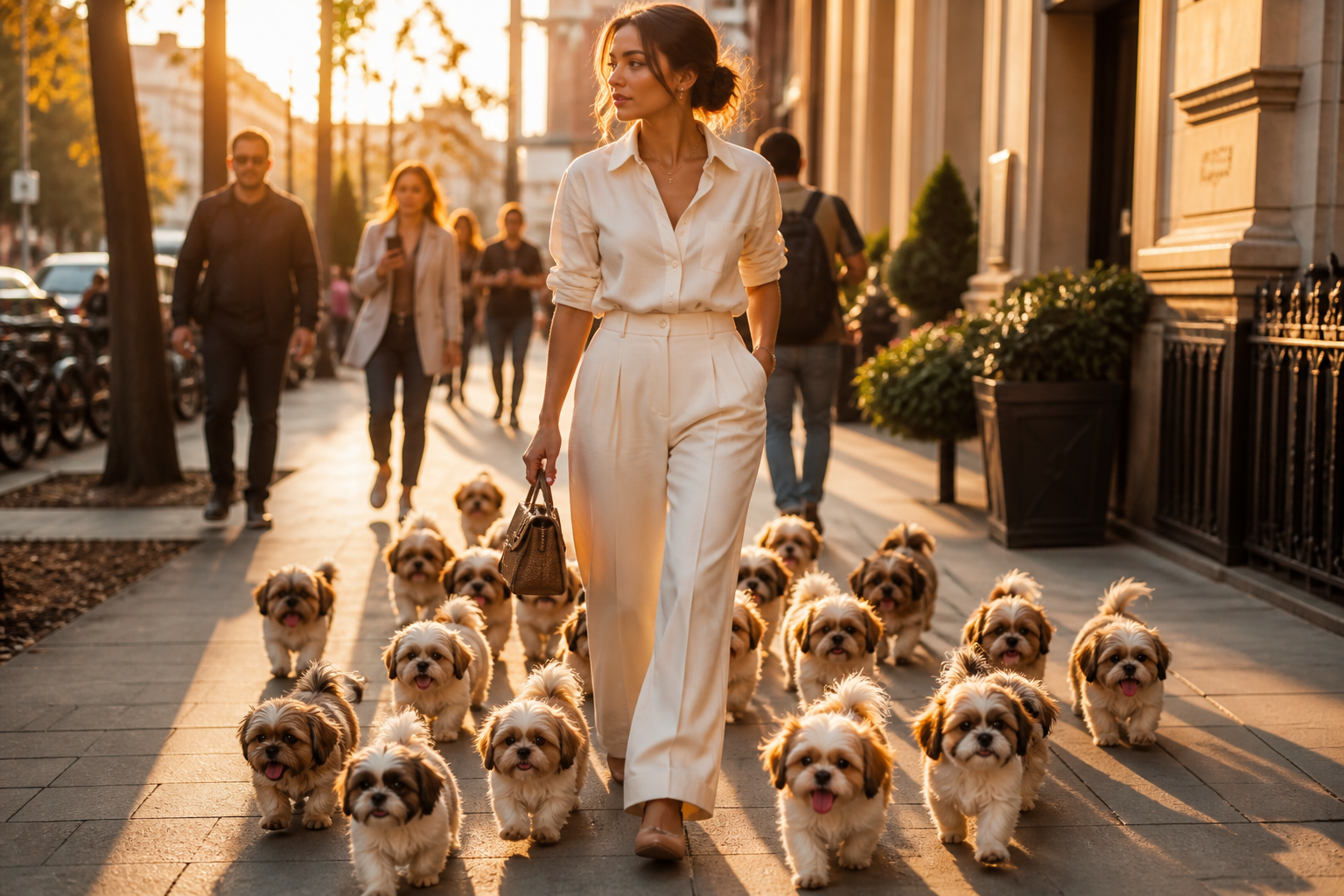
You scroll through your TikTok feed. Suddenly, everyone you know is surrounded by impossibly cute, fluffy puppies. They aren't visiting a shelter.
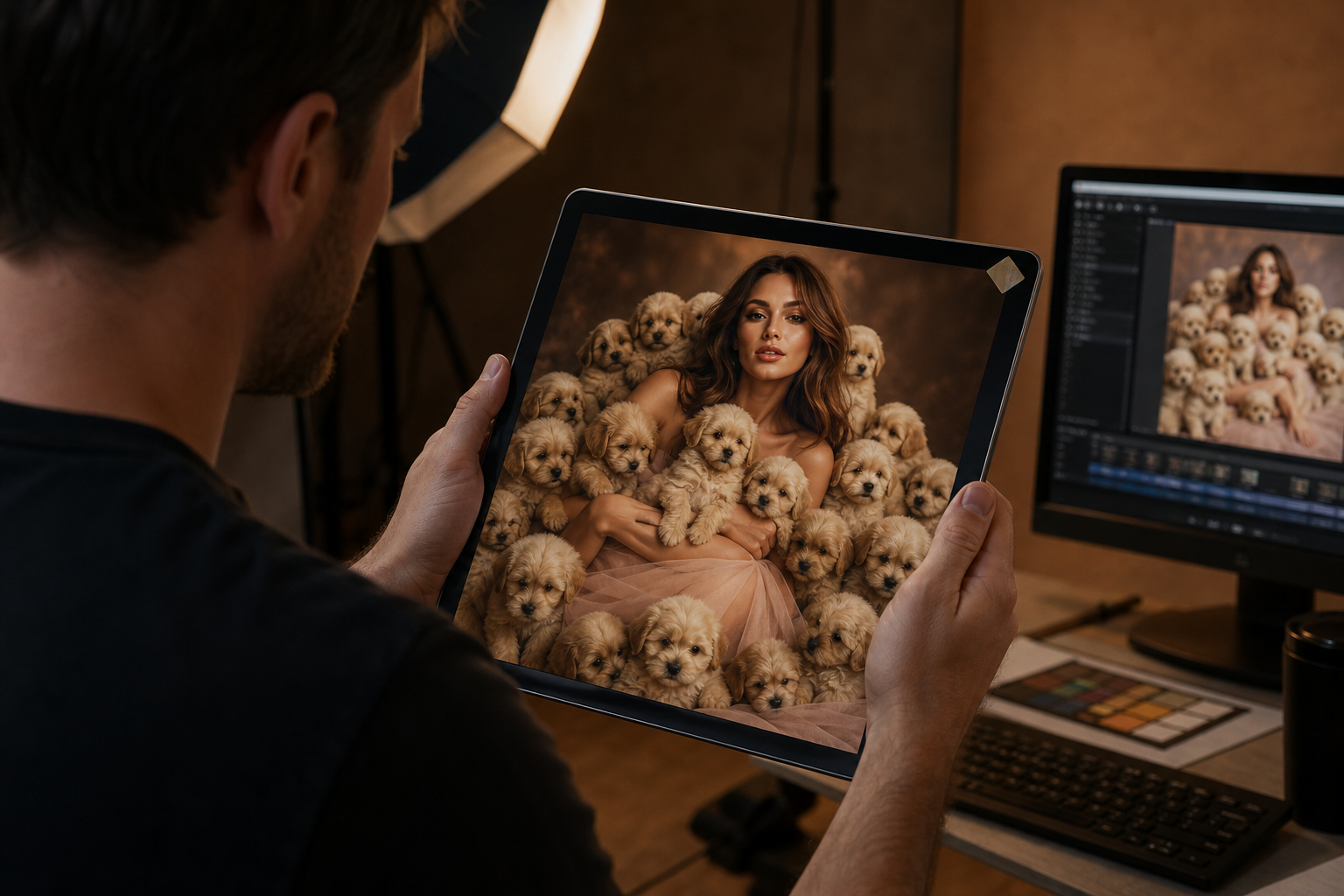
They are participating in the viral AI puppy photo trend. At its core, this social media challenge uses Generative AI to instantly flood an everyday selfie with adorable dogs.
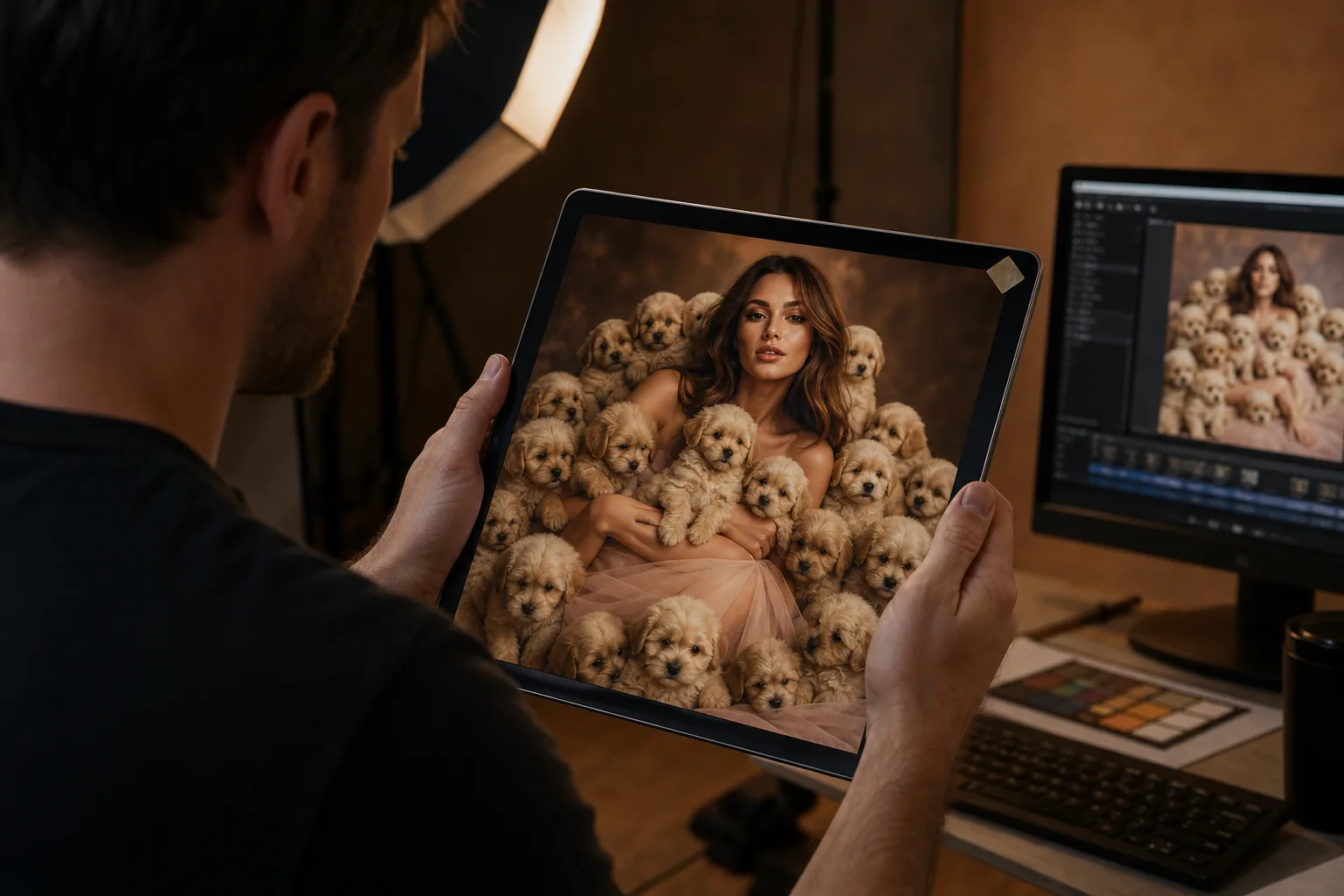
The TikTok trend goes viral simply because it works and triggers pure joy. It leverages the visual shock factor of seeing a dozen Golden Retriever puppies perfectly integrated into a familiar living room.
Recently, the trend evolved. It moved from static images into the puppy cuddle AI trend. Users animate the generated image so the puppies appear to move, breathe, and snuggle.
How to do AI puppy trend (Step-by-Step)
You don't need to be a prompt engineering expert to make this work. You just need the right tools.
Here is the detailed guide on using Google Gemini, Kapwing, and native TikTok filters to create your own viral moment.
Using Google Gemini
Google Gemini is currently one of the most reliable and accessible AI image generators for this specific trend. First, take a base image.
A photo of yourself sitting down on the floor or a couch works best. Open Gemini on your browser or phone and click the plus icon to upload your base image.
Then, simply paste your Gemini puppy prompt. The AI analyzes your posture, surroundings, and lighting to blend the generated puppies naturally into your space.
Using TikTok's Native Puppy Filter
If you want to skip third-party tools, you can use the TikTok puppy AI generator directly within the app. Open TikTok and hit the plus button to create a new video.
Tap the "Effects" icon in the bottom left corner. Use the search bar to look up "AI puppy filter TikTok."
Select the official effect and upload your selfie. The app processes the image for you instantly.
Best Copy-Paste AI Puppy Prompts (For Different Breeds)
The secret to a hyper-realistic result lies in the prompt. Generic instructions create generic photos.
You need exact, detailed descriptions. Here are the best copy-paste AI puppy prompts to ensure the lighting and placement look natural.
-
Prompt 1: Golden Retrievers
"Add 8 realistic Golden Retriever puppies to this photo. 6 playing on the floor around my feet, 2 climbing in my lap. Keep original background and lighting exactly the same. Photorealistic." -
Prompt 2: Pomeranians
"A swarm of fluffy pomeranian puppies surrounding the person in the photo, cinematic lighting, highly detailed, Instagram aesthetic, no distortion." -
Prompt 3: Dalmatians
"Three dalmatian puppies sleeping peacefully on the subject's lap, while four others play near their feet, matching the indoor lighting of the original photo, 8k resolution, photorealistic."
Advanced: How to Animate Your Photo for the 'Puppy Cuddle' Video
Static images are great, but video is better. To participate in the advanced puppy cuddle AI trend, you need to take your generated photo and animate it.
Save the final image you created using Google Gemini or Kapwing. Next, open a Generative AI video tool like Luma AI Dream Machine or Runway Gen-2.
Upload your puppy photo. You do not need a complex prompt here. Just type "animate" or "make the puppies breathe and cuddle."
The AI extrapolates motion, giving the puppies subtle movements like tail wags and gentle breathing. Download the video and upload it to TikTok with a trending sound.
Troubleshooting: Fixing AI Artifacts and Extra Legs
Generative AI is not perfect. Sometimes, a puppy has five legs, or paws melt into the floor.
If you notice strange AI artifacts, do not panic. The easiest fix is to regenerate the image entirely.
If you have a near-perfect photo with just one mistake, use an inpainting tool. You can use Kapwing's magic eraser or Photoshop's Generative Fill.
Lasso the weird paw and type "remove." The AI patches the background cleanly.